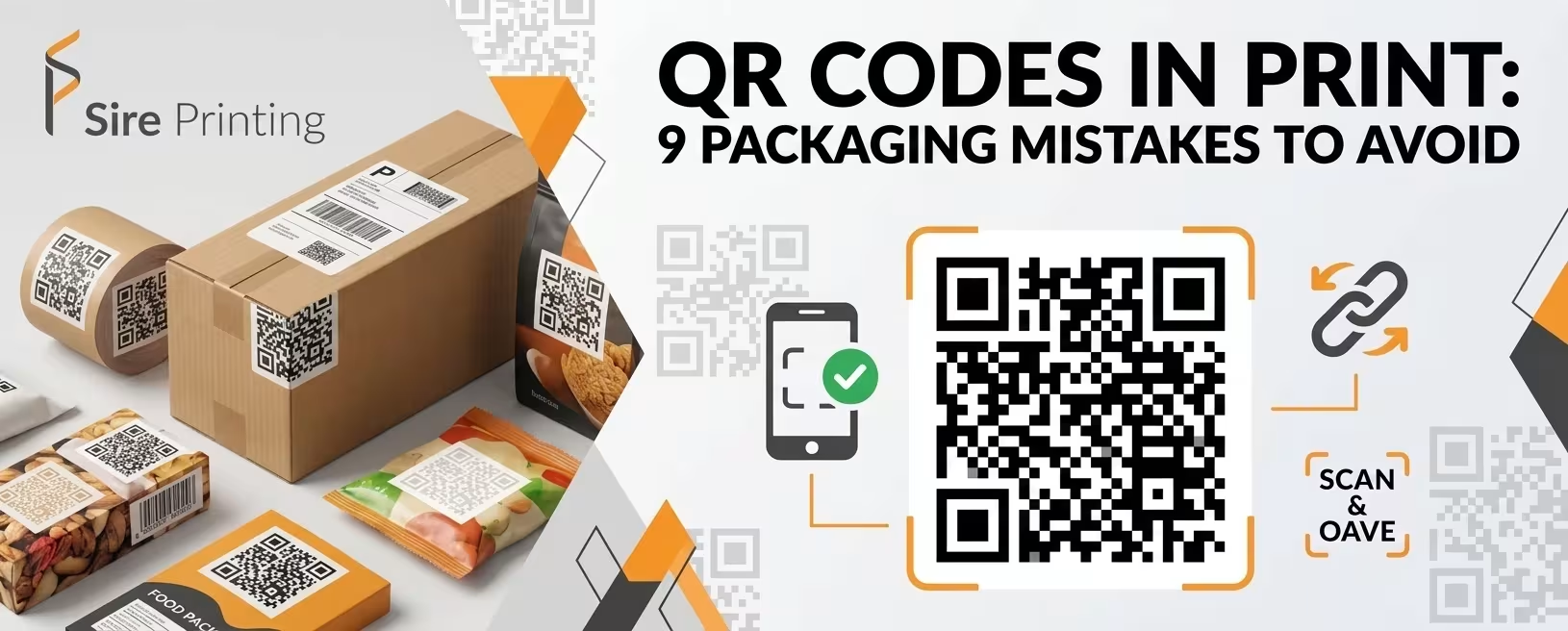
A QR code on a box looks simple enough: print it, ship it, done. Except a large share of QR codes in print never scan the way brands expect, and by the time anyone notices, the boxes are already sitting in a warehouse or out on a shelf. That's the real cost of getting QR codes in print wrong on packaging — it's rarely a quiet fix. It's usually a reprint.
The most common mistake with QR codes in print packaging is treating the code like a digital asset instead of a physical print element. A code that scans perfectly on a screen can still fail on a box, because print introduces variables a digital preview never shows — ink spread, material texture, curved surfaces, shelf lighting, and trim tolerances. Fix that mindset first, and most of the mistakes below stop happening on their own.
|
|
Why QR Codes Fail in Print, Not Digital
A QR code file that scans flawlessly on a laptop screen isn't the same object once it's printed on corrugated stock or wrapped around a curved bottle. Digital codes are forgiving — a phone camera can zoom in, adjust exposure, and read a code from six inches away under even lighting. Packaging offers none of that control.
Print adds ink bleed, paper texture, coating glare, and inconsistent lighting on a shelf or in a warehouse, and a code has to survive all of it in a single attempt, since most customers try once, maybe twice, before giving up. That's why QR codes in print need a different set of rules than a code built for a website or an email footer, and why QR codes on product packaging fail more often than most brands expect.
The 9 Mistakes Sinking QR Codes in Print Packaging
These are the failure points we see most often once a design file becomes an actual printed box — and what fixes each one before it costs a reprint.

Mistake 1. Skipping the Quiet Zone
Crowding a QR code on packaging is one of the fastest ways to break it. The quiet zone is the blank margin around a code that gives a scanner's software room to detect where the pattern starts and ends. When a logo, tagline, or border touches the code, phones often can't lock onto it at all.
The fix: leave a clear margin equal to at least four modules (the small squares that make up the code) on every side, and treat that margin as sacred space on the layout — no text, no graphics, no background pattern bleeding into it.
Mistake 2. Wrong Error Correction for a Logo Overlay
A QR code with logo in the center is one of the most requested features on custom packaging — and one of the most mishandled. Every QR code carries built-in error correction, meaning it can still scan even if part of it is damaged or covered. That correction comes in levels (L, M, Q, H), and each tolerates a different amount of obstruction.
The fix: generate the code with Quartile or High error correction before adding any logo, and keep the logo small enough to sit inside the code's tolerance — generally no more than 20 to 25 percent of the total code area.
Mistake 3. Printing the Code Too Small
Shrinking a code to fit a crowded label layout quietly kills more scan rates than almost any other mistake on this list. Below a certain size, the individual modules become too dense for a phone camera to distinguish, especially at typical scanning distance.
The fix: print no smaller than roughly 1 inch by 1 inch (about 2.5 cm) for arm's-length scanning, larger for shelf displays viewed from further away, and never below 300 DPI, or the fine edges of each module blur during the print run.
Mistake 4. Poor Contrast or Color Choices
Color sinks more codes than most brands realize. Scanners rely on strong contrast between the dark modules and the light background to read the pattern correctly. A QR code on packaging printed in a light color on a light background, or reversed over a busy photographic backdrop, forces the scanner to work far harder than it should.
The fix: stick with dark modules on a light, solid background, and if brand colors matter, test the exact Pantone or CMYK pairing on the actual print substrate — screen colors and printed colors are rarely identical.
Mistake 5. Curved, Glossy, or Foiled Surfaces
Substrate matters more in QR code packaging than almost any other factor. A code that scans perfectly on a flat proof sheet can fail once it's wrapped around a cylindrical tube, coated in gloss lamination that throws glare under store lighting, or stamped in foil that strips away contrast.
The fix: test on the actual finished substrate — not a flat digital proof — before the packaging goes into full production, especially for curved, glossy, or foiled surfaces.
Mistake 6. Skipping Multi-Device Testing
Assuming one successful scan means the code is production-ready is a mistake that only shows up after the boxes are already printed. Different phones, camera qualities, and scanning apps handle QR codes differently, and a code that scans instantly on a newer phone can struggle on an older device in dim lighting.
The fix: test across at least three or four different phones, lighting conditions, and distances before any run goes to full production — not one quick check on a single device.
Mistake 7. Static Codes with Dead Links
Packaging has a long shelf life. A box printed today might still sit in a warehouse, on a store shelf, or in a customer's home a year from now, long after the promotion or landing page it linked to has changed. A static code locks that destination in permanently, with no way to update it short of reprinting every box.
The fix: use dynamic QR codes, which point to a redirect that can be updated at any time without touching the printed code itself. For QR codes in print tied to a product, campaign, or seasonal offer, dynamic is almost always the safer choice.
Mistake 8. Placement Too Close to Trim or Folds
Where a code sits on the box matters as much as how it's designed. A code positioned too close to a trim line, fold, or seam risks being sliced, creased, or distorted during manufacturing, even when it looks perfectly placed in the design file.
The fix: build in a safety margin from any trim or fold line, matching the same bleed and safety-zone standards used for other critical print elements on the box. What looks fine in a flat mockup doesn't always survive folding, gluing, and die-cutting.
Mistake 9. Leading to a Broken or Non-Mobile Page
A code that scans perfectly can still fail the customer if it leads somewhere that isn't built for a phone. A desktop-only page, a slow load, or a broken redirect turns a successful scan into a dead end — and that frustration reflects on the brand on the box, not the phone.
The fix: give the destination behind every QR product label the same attention as the code itself — fast load time, a mobile-first layout, and a clear reason the customer scanned in the first place.
Quick Reference: The 9-Point Fix Checklist
A condensed version of everything above — worth keeping next to the design file until the run is approved.
|
|
|
|
|
|
|
|
|
|
|
|
|
|
|
|
|
|
|
|
|
|
|
|
|
|
|
|
|
|
Testing Before the Print Run Goes to Production
Catching a broken QR code after a full production run is one of the most expensive mistakes in packaging. A short testing pass before the run goes to full production catches almost everything above, for a fraction of the cost of a reprint.
• Print a small proof batch on the actual substrate, not just a digital mockup.
• Scan it with several different phones and scanning apps.
• Test under both bright and dim lighting.
• Confirm the destination page loads correctly on mobile.
This step takes a day, sometimes less. A reprint takes weeks, plus the budget nobody planned for.
How Sire Printing Helps You Avoid These Mistakes
Every custom box that runs through Sire Printing's production process gets checked against the same failure points covered above: quiet zone spacing, error correction level, substrate-specific contrast, and placement relative to trim and fold lines. Working with a printer that catches these issues before a run ships, rather than after, is often the difference between a QR code that performs and one that quietly gets ignored.
That applies across box types. Whether it's a run of Custom Food Boxes carrying a QR code food packaging use case for ingredient transparency, a broader set of Custom Packaging Boxes where a scannable code supports a bigger unboxing story, or Custom Product Boxes where placement has to work around curves and coatings, the same production checks apply before anything goes to press.
Frequently Asked Questions
What should you not do when scanning a QR code?
Avoid scanning codes from unverified sources, sites, or messages, since a QR code can hide a link the eye can't preview. On packaging specifically, avoid trying to scan through glare, at a sharp angle, or from too far away — moving to direct, even lighting and a straight angle solves most failed scans.
How do I scan a QR code on my own?
Most modern phones scan a QR code straight from the built-in camera app, with no separate download needed. Point the camera at the code, hold it steady until a notification or link preview appears on screen, then tap it to open the destination.
How to scan a QR code on a package?
Hold the phone roughly 4 to 8 inches from the box, in even lighting, angled straight rather than tilted. If the packaging has a glossy or foil finish, shift slightly to remove any glare before the camera locks onto the code.
Can I use a QR code instead of a shipping label?
A QR code is not a substitute for a compliant shipping label, since carriers require specific barcode formats, tracking numbers, and address data that a general QR code doesn't carry. A QR code works alongside a shipping label, for things like tracking pages, product details, or care instructions, not in place of it.
What size should a QR code be on packaging?
Roughly 1 inch by 1 inch is the minimum for anything scanned at arm's length, sized up for packaging viewed from further away, like a shelf display. The same sizing rules apply whether it's a QR code on food packaging carrying nutrition details or a general product box carrying a link to more information.
|
|